
Subtotal $0.00

Continuing from where we left off in Part 1, where we discussed analyzing ETL/SSIS projects, examining configurations, and dealing with errors and warnings, we now delve deeper into optimizing SSIS for peak performance. In Part 2, we’ll explore strategies for monitoring SSIS activity, identify bottlenecks at package level and task level.
SSIS Activity at package level
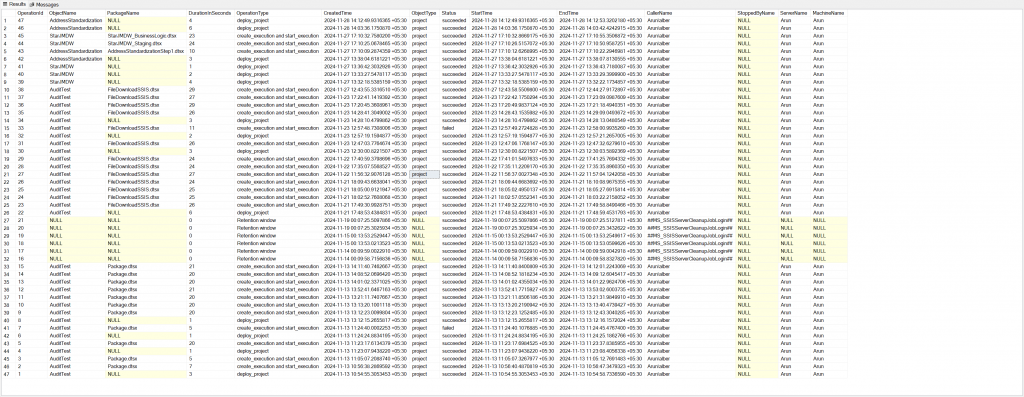
This query is an everyday tool that can be used in so many different ways.
- Monitor SSIS execution history
- Monitor SSIS deployment history
- Monitor SSIS version restoration history
- Monitor Configuring integration services catalog etc.
- Monitor SSIS execution time by project name, package name
- Monitor SSIS execution duration by package level
- Monitor execution time variations of a package over time to understand performance degradation.
- Monitor who calls the SSIS package
- Monitor Status of SSIS executions
- You can see a deployment that might have caused the failure and consider reverting back to the previous version until the SSIS is fixed.
- You can create Power BI reports using the query to plot SSIS packages that had degraded performance over time or identify most time consuming SSIS process or identify SSIS packages that fails often.
SELECT TOP 1000
o.[operation_id] AS [OperationId],
o.[object_name] AS [ObjectName],
e.[package_name] AS [PackageName],
DATEDIFF(SECOND,o.[start_time],o.[end_time]) AS [DurationInSeconds],
CASE o.[operation_type]
WHEN 1 THEN ‘Integration Services initialization’
WHEN 2 THEN ‘Retention window’
WHEN 3 THEN ‘MaxProjectVersion’
WHEN 101 THEN ‘deploy_project’
WHEN 102 THEN ‘get_project’
WHEN 106 THEN ‘restore_project’
WHEN 200 THEN ‘create_execution and start_execution’
WHEN 202 THEN ‘stop_operation’
WHEN 300 THEN ‘validate_project’
WHEN 301 THEN ‘validate_package’
WHEN 1000 THEN ‘configure_catalog’
ELSE NULL END AS [OperationType],
o.[created_time] AS [CreatedTime],
CASE [object_type]
WHEN 10 THEN ‘folder’
WHEN 20 THEN ‘project’
WHEN 30 THEN ‘package’
WHEN 40 THEN ‘environment’
WHEN 50 THEN ‘instance of execution’
ELSE NULL END AS [ObjectType],
CASE o.[status]
WHEN 1 THEN ‘created’
WHEN 2 THEN ‘running’
WHEN 3 THEN ‘canceled’
WHEN 4 THEN ‘failed’
WHEN 5 THEN ‘pending’
WHEN 6 THEN ‘ended unexpectedly’
WHEN 7 THEN ‘succeeded’
WHEN 8 THEN ‘stopping’
WHEN 9 THEN ‘completed’
ELSE NULL END AS [Status],
o.[start_time] AS [StartTime],
o.[end_time] AS [EndTime],
o.[caller_name] AS [CallerName],
o.[stopped_by_name] AS [StoppedByName],
o.[server_name] AS [ServerName],
o.[machine_name] AS [MachineName]
FROM [SSISDB].[internal].[operations] o
LEFT JOIN [SSISDB].[internal].[executions] e ON o.[operation_id] = e.[execution_id]
ORDER BY 1 DESC
SSIS Activity History by Task
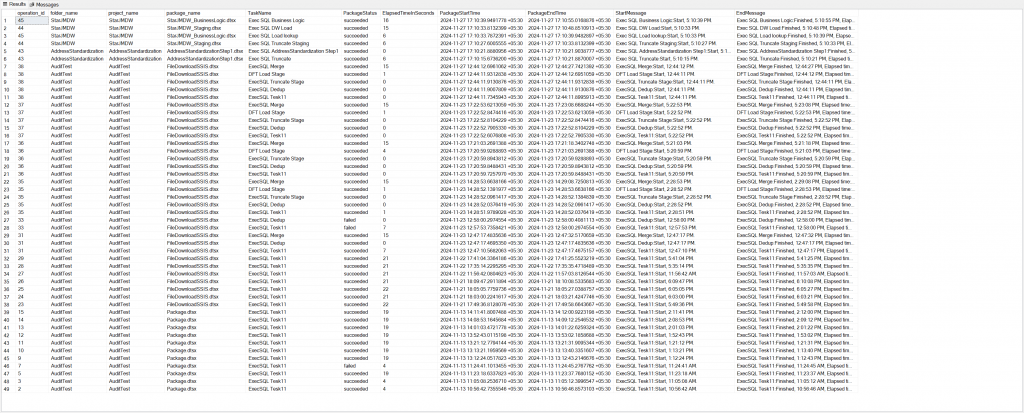
This analysis will show you the time consumed by each control flow task inside an SSIS package. This is a great place to start when you are trying to performance tune an SSIS package. This tells you exactly which task is eating up all your execution time. Once you identify the task you can performance tune that particular stored procedure or data flow task.
You can do many analysis using this query. Some of them are listed below.
- Monitor performance of a task over time. You can filter by the task name and package name and see how long it takes run over the course of a time frame.
- You can create Power BI reports using the query to plot SSIS package task that had degraded performance over time or identify most time consuming SSIS task.
- You can group by a task and the operation_id to see which task is adding up on time inside a loop. Sometimes an individual task might not be taking time but inside a loop, that task might add up hours of execution.
SELECT
omPackageBegin.[operation_id] AS [OperationId],
e.[folder_name] AS [FolderName],
e.[project_name] AS [ProjectName],
e.[package_name] AS [PackageName],
emPackageBegin.[message_source_name] AS [TaskName],
CASE o.[status]
WHEN 1 THEN ‘created’
WHEN 2 THEN ‘running’
WHEN 3 THEN ‘canceled’
WHEN 4 THEN ‘failed’
WHEN 5 THEN ‘pending’
WHEN 6 THEN ‘ended unexpectedly’
WHEN 7 THEN ‘succeeded’
WHEN 8 THEN ‘stopping’
WHEN 9 THEN ‘completed’
ELSE NULL END AS [PackageStatus],
DATEDIFF(SECOND,omPackageBegin.[message_time],Finish.[message_time]) AS [ElapsedTimeInSeconds],
–DATEDIFF(SECOND,omPackageBegin.[message_time],ISNULL(Finish.[message_time], GETDATE())) AS [ElapsedTimeInSecondsWithIsNullGetDate],
omPackageBegin.[message_time] AS [PackageStartTime],
Finish.[message_time] AS [PackageEndTime],
omPackageBegin.[message] AS [StartMessage],
Finish.[message] AS [EndMessage]
FROM [SSISDB].[internal].[event_messages] AS emPackageBegin
INNER JOIN [SSISDB].[internal].[executions] AS e ON emPackageBegin.operation_id = e.execution_id — Extract Project and Package Name
INNER JOIN [SSISDB].[internal].[operations] AS o ON emPackageBegin.operation_id = o.operation_id — Extract Status
INNER JOIN [SSISDB].[internal].[operation_messages] omPackageBegin ON omPackageBegin.operation_message_id = emPackageBegin.event_message_id
AND omPackageBegin.message_type = 30 –30 is task/package ‘started’
AND omPackageBegin.message_source_type = 40 –package level, 40 is task level
LEFT JOIN
(
SELECT
emPackageEnd.[message_source_id],
emPackageEnd.[operation_id],
emPackageEnd.[package_name],
emPackageEnd.[message_source_name],
omPackageEnd.[operation_message_id],
omPackageEnd.[message_time],
omPackageEnd.[message]
FROM
[SSISDB].[internal].[event_messages] emPackageEnd
INNER JOIN [SSISDB].[internal].[operation_messages] omPackageEnd ON omPackageEnd.[operation_message_id] = emPackageEnd.[event_message_id]
AND omPackageEnd.[message_type] = 40 –30 is task/package ‘ended’
AND omPackageEnd.[message_source_type] = 40 –30 package level, 40 is task level
) Finish
ON emPackageBegin.[message_source_id] = Finish.[message_source_id] AND emPackageBegin.[operation_id] = Finish.[operation_id]
–where emPackageBegin.operation_id = 27
ORDER BY PackageStartTime DESC
Key Takeaways
- Having an in-depth SSIS activity history is invaluable for both performance tuning and ETL optimization.
- Analyzing SSIS activity by tasks can help locate bottlenecks, making optimization efforts more targeted.
- Power BI dashboards bring life to ETL data, offering visualizations that keep both teams and stakeholders informed.
With each part of this toolkit, my aim is to ensure that any SSIS project—whether inherited or built from scratch—runs seamlessly, efficiently, and remains resilient against unexpected issues. In the next part, we’ll dive into more advanced strategies, including custom logging frameworks and best practices for integration with cloud data solutions.
Comments are closed